


Digital gadgets have become an integral part of our lives, and it is quite frustrating to watch them lag or work slowly. After the first few years of excellent and blazing-fast performance, the Macbook can have performance issues. The screen resolution randomly changes, the fan starts running at full speed, the battery doesn’t charge appropriately, or the Bluetooth or Wifi stops connecting properly.
To handle these problems, the best troubleshooting tip is to shut down all the applications and restart your Macbook. However, if you have tried that and it doesn’t seem to resolve your problems, then you should try resetting SMC (System Management Controller) and PRAM (Parameter Random Access Memory).
SMC and PRAM are two system controllers that control low-level hardware functions and system settings. They play a critical role in resolving many Mac performance issues. In this guide, we will explain everything about SMC and PRAM, and how the settings can be reset to get your Mac back on track.
Understanding SMC (System Management Controller)

The SMC, or System Management Controller, is a chip on Intel-based Macs that manages major physical components, like CPU and GPU, and various hardware functions, like cooling fans, system performance, and power supply. SMC controls these subsystems and ensures every hardware component works together for optimal speed, efficiency, and stability.
The SMC functioning is based on advanced proprietary algorithms that optimize the performance based on real-time conditions, like workload, thermal constraints, and power delivery capabilities. For instance, it minimizes power draw by intelligently adjusting how much energy different components of the Mac consume.
The SMC monitors system activity and determines whether your Mac needs full power or if it can run at a lower level to save energy. As the number of demanding tasks increases, it increases the power accordingly.
Resetting SMC is recommended when you are experiencing certain power-related or hardware problems. Since it is responsible for regulating temperature, power management, and battery performance, you can reset the SMC for problems related to these functions. To give you an exact idea, here is a list of problems where SMC is malfunctioning, and resetting is the right solution:
- Unexpected or sudden shutdowns
- Unresponsive when opening or closing
- Mac doesn’t turn on
- The MagSafe power adapter doesn’t indicate anything
- Overheating
- Malfunctioning Bluetooth or USB Port connections
- Erratic light or backlight behavior
- Unusually slow performance even during low CPU usage
- Improper functioning of the power button
- Wifi connection problems
To resolve the problems, first, it is recommended to restart your Mac, which aims to be the apt solution to fix all performance glitches and issues. Then, try cleaning and deleting junk files, like temporary files, logs, and cache data, to optimize space and performance. However, if the battery problem persists, then your next step should be to reset the SMC.
Understanding PRAM/NVRAM

PRAM, or Parameter Random Access Memory, is a type of memory that is used in some Macs that stores key system settings and preferences, like time, data, volume, and startup disk selection. PRAM is non-volatile as opposed to RAM, which is volatile. It stores the system settings between sessions, even if the computer is unplugged or there is a sudden power outage.
PRAM stores the system information about display settings, startup disk selection, speaker volume and settings, mouse and trackpad preferences, time zone and clock settings, kernel panic logs, recent system errors, and battery or low-power warnings.
PRAM utilizes a small internal backup battery to retain the stored system settings when the system is turned off. The batteries last upto 7-10 years. Therefore, there was a need for a successor that didn’t rely on battery. In some newer Intel-based Mac models, PRAM has been replaced with its successor, which is NVRAM (Non-Volatile Random Access Memory). It also stores system settings and preferences, but it doesn’t require a battery to retain its data.
When it comes to PRAM vs NVRAM, they don’t directly affect the performance, but misconfigured PRAM/NVRAM settings do. For example, the wrong screen resolution or refresh rate may lead to visual glitches or sluggish performance. That’s why, resetting the PRAM/NVRAM helps in resolving Mac performance issues.
Here is the list of signs or problems that indicate you need to reset PRAM/NVRAM:
- A blinking question mark appears when the Macbook starts
- Strange or clunky mouse scrolling or clicking behavior
- Unusual keyboard responses
- Improper sound output or no volume at all
- Incorrect date, time zone, or time information
- Display or screen resolution settings that don’t work or randomly change
Overall, when you start noticing strange functioning of basic features, like a clock, lights, MacBook’s battery meter, ports, and even the power button, it is best to reset the PRAM and SMC settings.
How to Reset SMC on MacBooks?
The process of resetting SMCs on MacBooks differs from model to model. The older Macs that have Intel processors have a different process as compared to the newer Macs with Apple Silicon (M1 and M2).
If you want to find out whether you have an Intel-based MacBook or not, then you can do this: Click on Apple Icon -> Click on About this Mac -> Check the Processor Configuration.
Once you figure out, you can choose the right method and proceed to reset SMC:
Method 1. For MacBooks (With Apple T2 Security Chip)
Before starting with the resetting SMC procedure, it is essential to check whether your MacBook model supports the Apple T2 Security Chip. It is commonly found in Mac models manufactured from 2018 and later.
For Mac Notebooks:
Step 1. Shut down the Mac.
Step 2. Press and hold the power button for 10 seconds and release the button.
Step 3. Wait for a few seconds and start your system again.
Step 4. If it doesn’t help in resolving the issue, then shut down the system again.
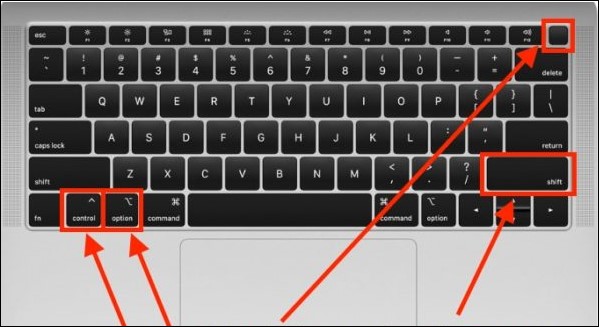
Step 5. This time, press the right Shift, the left Option key, and the Left control key, and hold them for 7 seconds. Then, press and hold the Power Button.
Step 6. Hold all the four buttons for another 7 seconds. This combination will turn off the Mac in case it has started.
Step 7. Release the key and wait for a few seconds. Restart your Mac.
For Desktop Mac
Step 1. Shut down the Mac.
Step 2. Press and hold the power button for 10 seconds and release.
Step 3. Wait for a few seconds before starting the Mac.
Step 4. If it doesn’t resolve the issue, shut down the Mac again.
Step 5. Remove the power cord, wait for 15 seconds, plug the power cord, and again wait for 5 seconds.
Step 6. Press the power button and turn on the Mac.
Method 2. For Older MacBooks (Without Apple T2 Security Chip)
For older MacBooks without the Apple T2 Security Chip, a different procedure needs to be followed to reset the SMC. The older models (Pre-2018) reset the SMC by performing a power cycle. Power cycling cuts the power to a Mac and forces it to restart.
The procedure to reset SMC also depends upon whether your MacBook, MacBook Pro, and Macbook Air models have removable batteries or non-removable ones. So, it is essential to follow the right procedure to reset the SMC successfully.
For MacBook with a non-removable battery:
Step 1. Shut down your MacBook.
Step 2. Press and hold the Shift, Control, and Option on the left side of the keyboard and the power button, all at the same time.
Step 3. Hold for 10 seconds.
Step 4. Release the keys and turn on your system.
For MacBook with a removable battery:
Step 1. Shut down the Mac.
Step 2. Remove the battery.
Step 3. Press and hold the power button for 5 seconds.
Step 4. Put the battery back in and turn on the Mac.
For older Desktop Mac:
Step 1. Shut down the system.
Step 2. Remove the power cord and wait for 15 seconds.
Step 3. Reconnect the power cord and wait for 5 seconds.
Step 4. Start your computer by pressing the power button.
Method 3. For M1/M2 Chip MacBooks
There is no need to reset SMC on M1 and M2 Chip MacBooks because there is nothing to reset. The M1 and M2 chip handles all the SMC functions, so there is no system management controller in the computers. So, all you need to do is restart the computer. Here are the steps you can follow:
Step 1. Shut down your MacBook
Step 2. Wait for 30 seconds and then start the MacBook.
This will act like a SMC reset, and all the performance should be fixed.
How to Reset PRAM/NVRAM on MacBooks?
The process to reset PRAM is also called zapping PRAM. The process of resetting PRAM/NVRAM differs on the basis of the Mac’s CPU. Macs powered by Intel processors are different, regardless of whether they support PRAM or NVRAM, from Macs with Apple Silicon (M1 and M2 Macs).
Here’s what to do if you have an Intel Mac:
Step 1. Shut down the computer and remove all the USB devices except the wired keyword.
Step 2. Press the power button to start your Mac.
Step 3. Immediately press and hold the Option, Command, P, and R keys on your keyboard for about 20 seconds. You need to press these keys before the grey screen appears.
Step 4. While you hold the keys, your Mac will appear to restart. For older Macs that chime upon startup, hold the keys until you hear the second chime. For Macs with Apple T2 Security Chip, hold the keys until the Apple appears and disappears for the second time.
Step 5. Release the keys and let your MacBook reboot.

After zapping the PRAM procedure, some of the system settings will also reset, like mouse tracking, system preference, date and time, and volume. So, check the System Preference and adjust the settings as per your needs.
When it comes to M1 and M2 Macs, resetting the NVRAM is similar to restarting the MacBook. So, all you need to do is shut down the MacBook completely, wait for 10 seconds, and turn it on again.
Testing Battery Functionality After Resets
After performing the resets, you should check the battery functionality and if the problem has been resolved or not. Here’s how you can test the battery functionality:
- Check if the battery is charging or detected
- Use Apple’s Battery Health Monitor to analyze battery performance
- Monitor if system performance issues are resolved
When to Consider Replacing the Battery?
If the reset doesn’t work to fix the problems, then there is either a software or hardware issue. A hardware issue can be easily detected by running Apple Diagnostics. It will not only tell you about the exact issue but also allow you to contact Apple Support if required.
For an Intel-based Mac, turn on the system and immediately press D. Once you see the progress bar or are asked to change a language, then release the key. For Apple Silicon-based Mac, press and hold the power button or Touch ID when you see that. Your Mac will turn on and load the startup options. When you see the options, release the button and hold the Command + D option on the keyboard.
Apple Diagnostics will show some reference code for the issue that your MacBook is facing. You can write it down or take a picture, which will help the technician fix the issue.
Sometimes, the reason why resetting PRAM and SMC doesn’t work is when the battery is at fault. Some of the common signs are a drastic drop in battery levels and if your MacBook only works when plugged in.
So, you can check the battery condition by clicking on the Apple Menu, then System Settings, and then clicking Battery in the sidebar. Look at the battery’s health. If it shows Normal, then it is functioning normally, and if it shows Service Recommended, then it is time to replace the battery.
You can explore Techie’s high-quality MacBook-compatible batteries with a 1-year warranty and hassle-free returns!
Related Article: How to Find the Right Battery for Apple Macbook: Complete Step by Step Guide
The Bottom Line
The best way to avoid running into Mac problems is to keep your Mac and the battery in the best condition. Follow general practices, like installing the latest software, avoiding extreme temperatures, avoiding charging the system when it is hot, and removing it from charging if it starts to get hot. Following the battery care guidelines, and not fully charge or discharge your battery (keep it between 20 – 80%).
However, if your MacBook still starts to have performance issues, then it is best to perform a simple restart. This can solve all the battery problems in the MacBook with Apple Silicon (M1 and M2). In Intel-based processor Mac, if the issue persists, it is recommended to perform SMC and PRAM reset. This will solve the issue. If the MacBook battery issues persist, upgrade to a reliable replacement battery today!
FAQs
- How often should I reset SMC/PRAM?
It is recommended to reset SMC/PRAM only when you experience computer hardware issues, like unexpected shutdowns, battery drain or charging issues, fan problems, display glitches, or unresponsive keyboard backlight.
- Will I lose data during the reset?
No, there is no data loss during the SMC/PRAM reset. However, the reset will only affect system settings, like display resolution, volume, and startup disk selection, but not your data.
- Do Apple Silicon Macs need an SMC reset?
No, Apple Silicon Macs do not require a specific SMC reset. Since the M1 and M2 chips handle the SMC functions, there is no separate system management controller. So, shutting down your Silicon-based Macbook and starting it after a wait for a few seconds will work.
- Why didn’t the reset fix my battery issue?
If a reset doesn’t fix the battery issues, the problem could be related to a faulty battery, a hardware issue with the charging port, or a software setting that is affecting the battery life.


![Why Is My New Laptop Battery Draining Fast? [Solutions Inside]](http://techiestore.in/cdn/shop/articles/asda_28e17528-d7b5-4d06-a03a-dda86f229c05.png?v=1788211410&width=360)


