


Laptops, just like all other portable electronic devices, come with a built-in battery which degrades over time. However, the important thing is that it takes time, during which the battery performance deteriorates. After 3-5 years of use or 300-500 charge cycles, this should happen.
However, if it has been only a few months or weeks since you purchased your new laptop battery and you are experiencing unusually fast battery drain, it could indicate underlying software or hardware issues.
This isn’t normal behaviour for a new device. While it is not normal, it is a common problem. There are many reasons that could be responsible, such as using your laptop at a higher brightness level than usual or the backlit keyboard being excessively draining the battery.
Sometimes, the problems can be a little more severe, like the newly purchased battery is faulty. If you’re unsure whether your battery is functioning correctly, here’s how to check laptop battery health in Windows and macOS.
Regardless of the complexity, let’s understand all the root causes behind this problem and solutions on how to fix them.

Possible Reasons Why Your New Laptop Battery Runs Out Quickly
A rapidly draining battery doesn’t mean your new battery is defective. More often, it is a combination of software settings, updates, daily usage habits, power management issues, and driver updates. Here’s a list of some of the most common reasons:
1. Battery Not Yet Calibrated
Battery not yet calibrated means that the battery’s internal sensor and your operating system may be out of sync. Without calibration, your system may display an incorrect battery percentage. For instance, even if 30% of the charge is left, due to miscalibration, the laptop might think it’s out of power and shut down unexpectedly. All the newly installed batteries might not be calibrated, and it need to be done manually.
2. Background Processes Eating Power
When you’re using your laptop and working on a specific application, some unwanted programs may be running in the background. Apps running in the background, such as web browsers with open tabs, chat apps, or syncing tools like OneDrive or Dropbox, keep the processor active. The more the CPU works, the more battery it uses.
3. Unoptimized Power Systems
The power settings have the biggest impact on your new laptop battery, causing it to drain faster. High screen brightness, active keyboard backlighting, or using high-performance power modes can drastically reduce battery life. With experts tips for maximizing battery performance for optimizing the power settings, you can easily extend your laptop’s battery life by reducing unnecessary power consumption.
4. Windows or macOS Indexing After Reboot
After major updates or fresh OS installations, your system might perform indexing in the background. Indexing is a normal but resource-intensive process that runs in the background, helping the OS (Operating System) to quickly search for files, emails, documents, and apps. Indexing improves the performance in the long run, but it can be demanding on system resources during the process.
For instance, the indexing process keeps the processor busy as it scans thousands of files, especially if you have a fast SSD with a large storage capacity. Besides, during indexing, your laptop will remain in an active power state and will not enter idle or energy-saving modes.
5. Poor Quality or Incompatible Battery (Non-Certified)
Quality matters when replacing a laptop battery. A genuine brand certification ensures that the battery has been tested and approved by the laptop manufacturer for compatibility and safety.
Opting for a cost-effective yet low-grade or non-certified replacement battery is not worth the investment. The non-certified batteries can lead to various performance issues, ranging from poor battery life to potential damage to your laptop’s internal components.
While buying a replacement battery, you should consider different factors, like the laptop’s make and model, battery type (LiPo, Li-ion, NiCad, and NiMH), capacity (Wh/mAh), and voltage, to find a compatible battery. Buying a compatible battery has a high upfront cost, but in the long run, it a safer and cost-effective option.
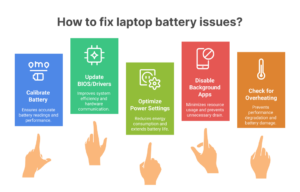
Solutions to Fix the Potential Problems
So, if you are laptop battery is not lasting long enough, then here are some solutions that you can implement to fix the issue:
Solution 1. Calibrate the Battery
Follow the following steps to calibrate the battery:
- Step 1. Charge the laptop battery to 100% and then leave it plugged in for an additional 2-3 hours.
- Step 2. Remove the laptop from charging. In settings, go to the power management section and set your laptop to automatically suspend or hibernate when the battery power reaches 5%.
- Step 3. Use it normally to drain the battery fully.
- Step 4. Once the battery is discharged completely, leave the computer turned off for 5 hours. Do not keep it on charge or anything, just leave it idle.
- Step 5. After 5 hours, plug in your laptop to charge and let it charge until it reaches 100%. You can use your laptop normally while charging.
That’s it. The calibration process is all about fully charging the battery, then discharging it, and again charging it.
Solution 2. Update BIOS and Battery Drivers
BIOS settings allow you to control low-level system functions before the operating system (OS) loads. If you want to check your current BIOS version, here’s how you can check it:
- Press Windows key+R, and then type msinfo32, and press Enter.
- Look for the BIOS version/date in the system information window.
Updates may reset your existing BIOS settings, so it is best to write them down. Also, back up your data. While a BIOS update won’t affect the data, it’s always better to be safe. Here’s how you can update BIOS:
- Step 1. Download the BIOS update utility from the manufacturer’s website.
- Step 2. Now, run the utility, and follow the on-screen instructions to choose the BIOS update file.
- Step 3. The system will restart, and the BIOS settings will get updated. Ensure that your laptop is connected to a power source during the process.
BIOS is a firmware, which is a type of software embedded in your motherboard that controls low-level hardware operations and system startup behavior. Drivers, on the other hand, are software programs that allow the operating system to communicate with hardware components.
Sometimes, battery drain is due to bugs in outdated drivers that keep the hardware components running necessarily. Learn how you can update drivers on Windows.
Solution 3. Optimize Power and Display Settings
For Windows, click the Start button, then select Settings > System > Power and Battery. Here are the settings that you should change:
- Under Power Mode, select Balanced. For battery savings, choose Best Power Efficiency.
- Under Display settings, slide the brightness bar to the lower end. Enable the “Change brightness automatically when lighting changes” option if available.
- Turn on the Battery Saving mode.
In Mac, go to System Settings > Battery, and then:
- Enable low power mode.
- Change the turn display off after to a lower value, like 5-10 minutes.
- Use F1 key to reduce the display brightness
- Use Safari as it is optimized to consume less power than Chrome or Firefox.
Solution 4. Disable Unnecessary Background Apps
Use Task Manager for Windows and Activity Monitor for Mac to see the running processes and their resource usage. End the tasks or quit the processes which are not unnecessary.
You can also disable the startup programs that you don’t need at boot using the Task Manager. In Mac, you follow the following steps: System Preferences > Users and Groups > Login Items.
Solution 5. Check for Overheating
Overheating can accelerate battery drain, and here are some signs that indicate overheating:
- The system shuts down automatically after a certain amount of time.
- The reported CPU operating frequency is less than expected.
- The CPU slows down unexpectedly
- System performance drops, like it becomes slow, during use
- Excessive CPU fan noise
If you feel that your laptop is getting overheated, it’s recommended to close all unnecessary apps and browser tabs, especially those that are consuming more resources. The overheating signs will reduce after some time.
However, if your laptop gets frequently overheated due to excessive workload, then, it is recommend to use a cooling pad. It provides additional airflow beneath your device. Cooling pad is beneficial as it helps to dissipate heat more efficiently and maintain optimal performance during intensive tasks.
Still Draining Fast? It Might Be a Faulty Battery.
Sometimes, even after all the right tweaks and calibration, your battery may still drain quickly. This can be frustrating. You need to run a battery health check to find out the root cause of battery drain.
On Windows, open the command prompt and type powercfg/batteryreport. This will generate a battery report in your user folder. Open the report and look for full charge capacity and compare it to Design capacity. A big gap between these values often means the battery isn’t holding as much power as it should.
Mac users can click the Apple logo, hold the Option key and select System Information. Then go to the Power tab to see the battery’s cycle count and condition status. If the battery health says Service Recommended or the cycle count is already high, then you need to change the battery. For more detailed information, you can read “How to check battery health”.
Why Techie Batteries are Built for Performance?

Techie is your one-stop solution for all your battery accessories. They are crafted to provide more than just power, as they’re built for consistent, dependable performance. Here are the features that set Techie batteries apart:
- High-density lithium-ion cells for longer backup and faster charging
- Strict compliance with CE and RoHS certifications to ensure safety and quality
- Optimised circuitry and firmware to reduce energy loss
- Extended lifespan thanks to enhanced cycle durability
- Customer-first warranty with 1-year coverage and 7-day replacement support
Each battery is tested under real-world conditions, so you get performance that matches expectations. Whether you use your laptop for work, school, or entertainment, Techie laptop battery help you stay powered up longer and safer.

Conclusion
If you’re experiencing this, don’t worry. Once you determine what’s causing the battery to drain faster, with the right fix, you can instantly solve the problem. New batteries sometimes require 1–2 full charge and discharge cycles to stabilize and provide accurate readings. It’s a good idea to run a calibration cycle and optimize your power settings to ensure the battery performs at its best.
Besides, your laptop battery is still under warranty, so if the fixes don’t work, you can have your laptop checked at the brand’s authorised service centre or customer support. They can run diagnostics and possibly replace the battery at no extra cost during the warranty period.
If you are not sure whether the battery needs to be replaced, then there are some signs that you will notice that indicate that it is time to get your battery replaced.


